
Create Your Survey Here
To create a survey using the Community Services Outcomes Tree (CSOT), please fill in the boxes below.
Please note:
- This survey template is designed to collect data via self-report of consumers of community services. It is intended to be used at the end of, or at a set time after, the delivery of services.
- This set of survey questions is designed for adults. Alternate data collection questions and methods should be used for children.
- You can modify the content of each box or choose to discard any question/section if you do not wish for it to appear in your survey.
Once you have completed the sections below you can download a Word copy of the full survey. If you are wanting to use an online platform for data collection you can generate a version that is compatible with Survey Monkey, Microsoft Forms and Qualtrics. Scroll to the bottom of this page for more details on how each platform works.
If you would prefer a blank Word version of the template, you can download it by clicking on this link.
- You have no outcomes in your library.
You have now designed your survey. Please see below for information about downloading options.
Export Auto-Filled Short Survey
Notes about the various types of exports:
- Word document survey exports include all questions and other items of text such as introduction and conclusion that you choose to include. They also include any page breaks you specify in the form below.
- Qualtrics survey exports also include all chosen questions, text elements and page breaks in a specially encoded text file that can be imported into a Qualtrics survey.
- Survey Monkey survey exports only include the questions you choose and are exported as text that you will need to copy and paste into a Survey Monkey survey.
- Microsoft Forms survey exports also include only your questions, but are exported as a Word document that can be imported into an MS Forms form.
- Please note: these online platforms are continually updating so the functionality offered may be different to what is suggested here.
Tips for capturing data using the CSOT
Now that you have created your survey, here are a few tips to support you in capturing data:
- You might like to offer a variety of ways through which people can complete the survey (for example, online, in-person, or over the phone). If using the phone option, a ‘script’ should be developed so that all surveys are administered consistently.
- Some participants may need assistance to complete the survey. This should be someone that participants feel comfortable with.
- Consider using other methods of data collection such as interviews or image-assisted discussion that can supplement this survey. Community service users have told us they sometimes prefer these methods.
- You should ensure that the survey is administered ethically. At a minimum, this means:
o gaining informed consent
o ensuring the anonymity of research participants
o participants are aware of how data will be collected, stored and analysed
o participants are aware of the purpose of the survey
o participants feel comfortable in the environment in which they complete the survey, and with anyone who supports them to complete the survey
- Capturing outcomes data is only one part of the process. You will also need to think about how to record, analyse, share and use the data that you collect.
Survey Monkey Survey Questions
Yours questions have been copied to the clipboard. Go to Survey Monkey now and follow the steps below to paste your questions into a survey
Survey Monkey Survey Questions
Your questions have been copied to the clipboard. Go to your Survey Monkey survey now and follow these steps to paste your questions into it:
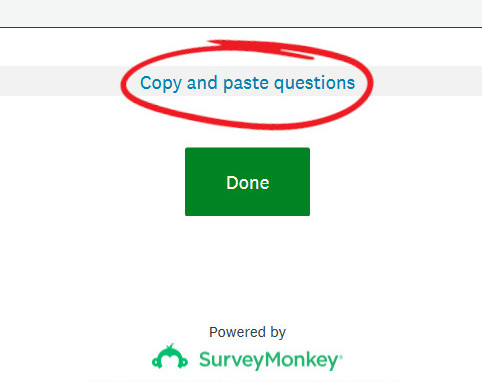
STEP 1: Open your survey and click on the Copy and paste questions near the end of it.
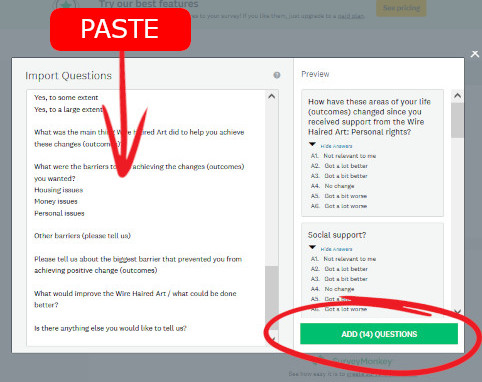
STEP 2: A popup will appear. Paste your questions in the Import Questions box then click on ADD QUESTIONS button that appears.
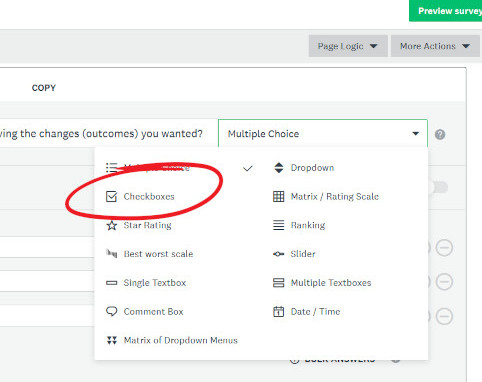
Microsoft Forms Import
Your questions should now be saved to . Go to Microsoft Forms and follow the steps below to convert them to a form:
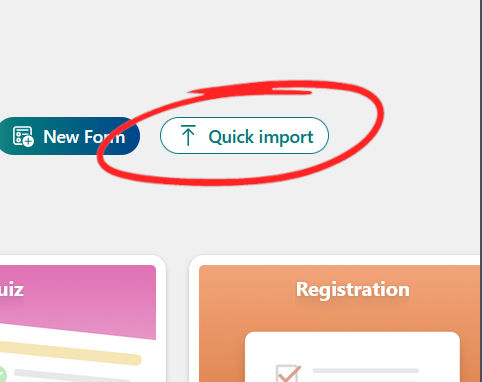
STEP 1: Go to the Microsoft Forms site, login, and click on the Quick import button near the top of the page. A popup will appear.
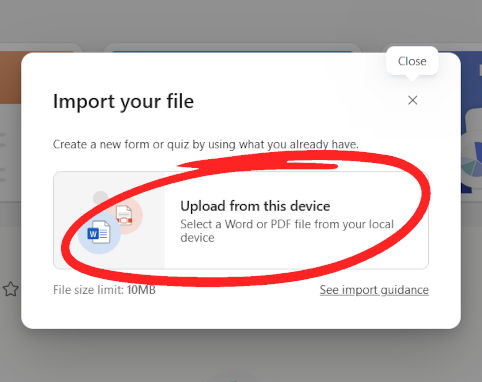
STEP 2: Click on Upload from this device and select . In the next pop up, select the Form option.
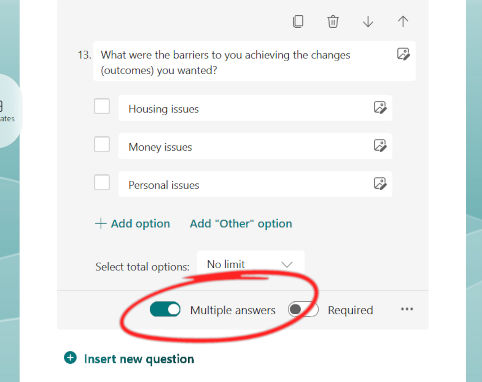
Qualtrics Survey Import
Your questions should now be saved to . Go to Qualtrics and follow the steps below to convert them to a survey:
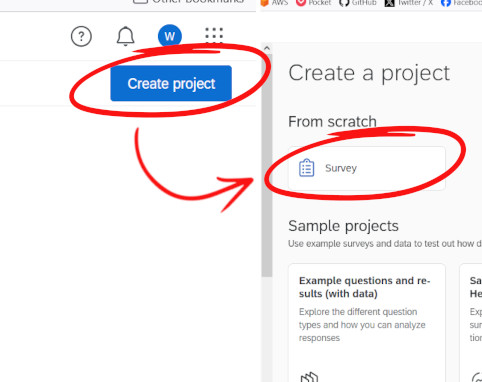
STEP 1: Go to the Qualtrics site, login, and click on the Create Project button. Choose to create a survey from scratch and remove any default questions the survey might contain.
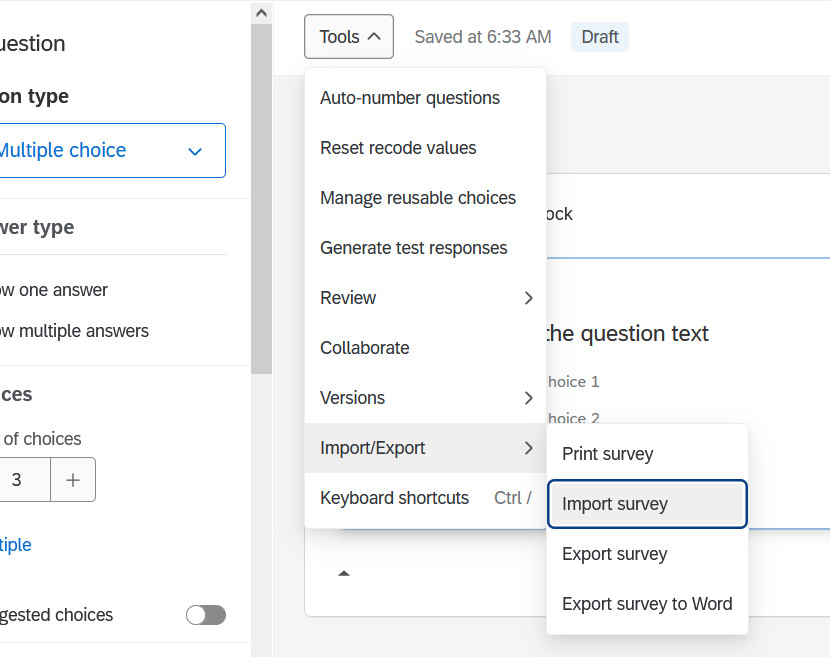
STEP 2: Click on the Tools menu button near the top of the survey and select Import/Export > Import survey.
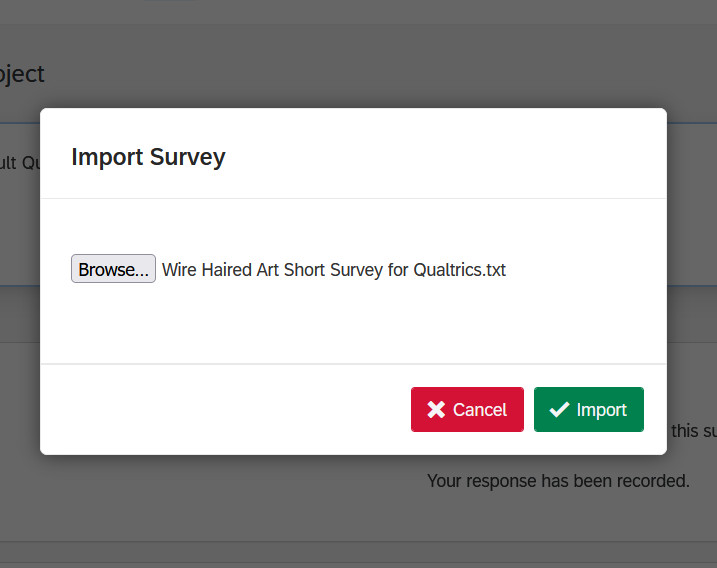
STEP 3: Select your text file - - and click on the Import button that appears. Once imported, you can make further amendments within Qualtrics before "publishing".